


 Mac Uninstaller


 Today, I will share learn the different ways on how to enable or disable Mac extensions as well as the methods on how to keep your system at its optimum performance.
Du kanske har hört talas om webbläsartillägg från vänner eller online men du är inte riktigt bekant med denna tekniska sak så du söker och tycker att den är svår att förstå eller använda.
In this article, we will explain all about there is on extensions including the many ways on how to enable or disable Mac extensions, update, and even uninstall this feature.
Läs med för att ta reda på hur du kan göra din webbupplevelse bättre och mer personlig.
Innehåll: Del 1. Vad är Mac-tillägg?Del 2. Hur man manuellt aktiverar eller inaktiverar Mac-tillägg?Del 3. Skillnad mellan tillägg, plugin-program och tilläggDel 4. Aktivera eller inaktivera Mac Extensions All-in-OneDel 5. Hur man uppdaterar tilläggDel 6. Sammanfattning
Del 1. Vad är Mac-tillägg?
Mac extensions are software features that are added to the browser, phone or the OS for extended or added functionalities.
Extensions are made by third-party developers that are downloaded, installed and enabled at any time.
Hur fungerar det?
Dessa tillägg integreras med webbläsaren för specifika uppsättningar av uppgifter som låter dig upptäcka nya och roliga sätt att anpassa webbupplevelsen.
Like for example, if you are frequently using Amazon, you can install an extension which lets you browse or search at anytime.
There will be a search bar added on the browser taskbar to let you conveniently use it at any time.
Another example for extensions is those pop-up blockers which are normally annoying whenever you open certain web pages.
You can easily add an Ad-blocker to trap these pop-ups and will no longer bug you when opening new pages.
Del 2. Hur man manuellt aktiverar eller inaktiverar Mac-tillägg?
Like other software, extensions need to be downloaded or installed.
Tillägg kan laddas ner och installeras med webbläsaren Safari. Detta lägger till funktioner, ändrar utseende och användarvänlighet för vissa webbsidor.
- Open Preferences from the Safari menu
- Click Extensions
- Find the desired extensions you wish to use.
- Check or uncheck the Enable box
- Install desired extension, If needed to uninstall, click the uninstall button
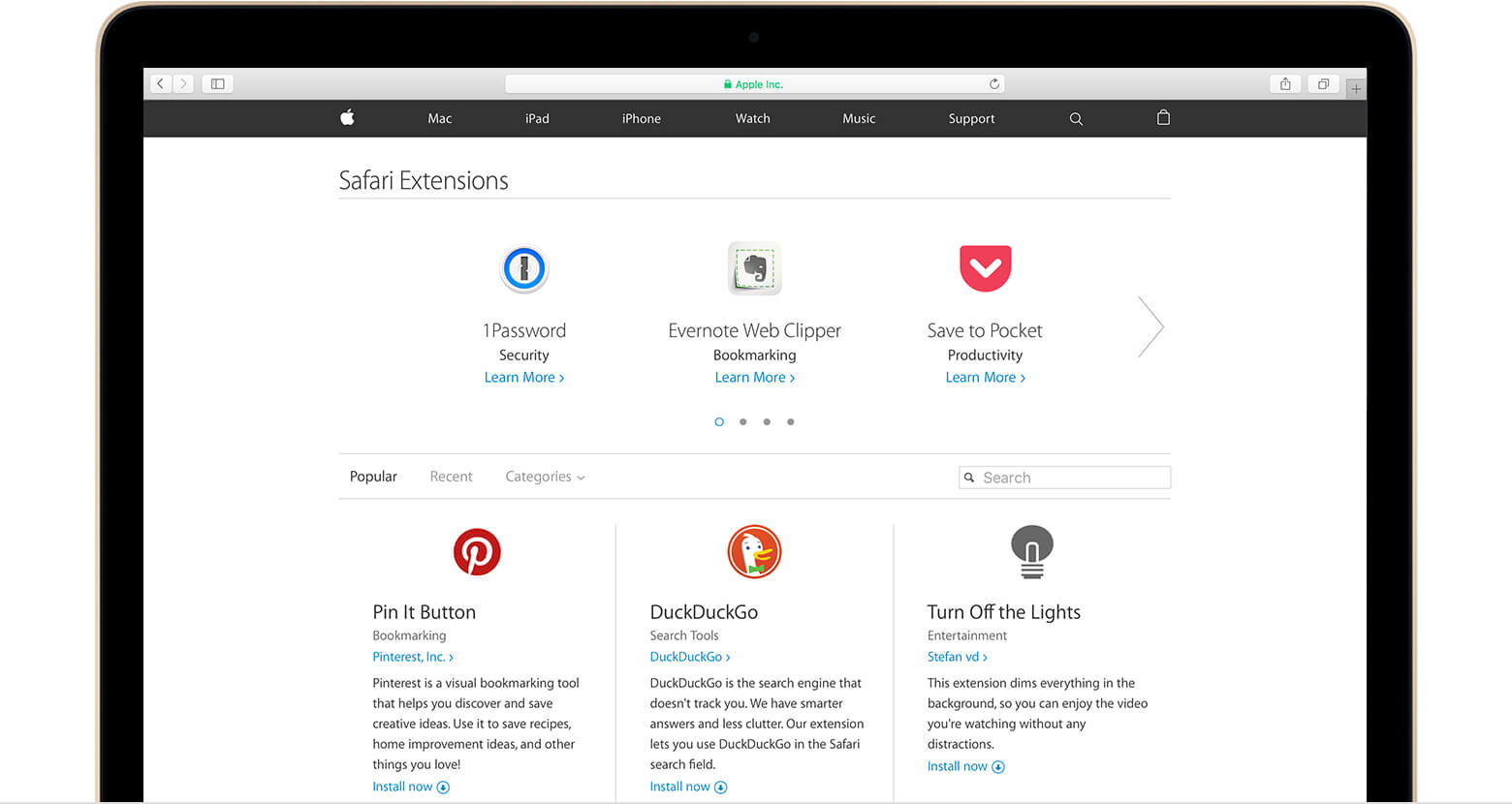
The steps to enable or disable Mac extensions are so easy, however; you have to do this every time you have new extensions to use on the browser.
You can also get extensions directly from the developers. Upon downloading an extension from the developer, you will see a file that usually ends with .safariextz. Double-click on the given file to install the extension.
These extensions are not signed or hosted by Apple, so Safari needs to ask you to confirm that you trust the source and want to continue the installation.
Del 3. Skillnad mellan tillägg, plugin-program och tillägg
For non-technical people, it seemed that they are looking for the same exact thing when they hear about extensions, add-ons, and plug-ins.
However, they are in fact different from each other in so many ways.
Låt mig definiera var och en av dem så att du inte blir förvirrad nästa gång du ser någon av dem.
Vi har redan diskuterat tillägg, dess definitioner och hur man aktiverar eller inaktiverar det, så jag ska ge dig några populära tillägg på Mac istället:
- AdBlock
- Web Clipper
- 1Password
- Spara i fickan
- Och Duck Duck Go
These are the most common Safari extensions which you normally see and use.
Although we often mistake them to be part of the web browser, at least now we understood that these are called extensions which are separate entities from the Safari.
Add-ons
Tillägg är programvaror som kan övervägas eller liknar tillägg. Precis som tillägg kan tillägg göra magiska saker i en webbläsare. De används ofta omväxlande.
Insticksprogram
Plugins only add specific feature or content to an existing computer program and it does not affect the entire Safari browser. It doesn’t offer the same capabilities like extensions.
- Adobe Flash Player
- QuickTime Player
- Och Java
Plugins påverkar bara en befintlig sida och inte hela webbläsaren som hur tillägg fungerar.
Del 4. Aktivera eller inaktivera Mac Extensions All-in-One
To avoid further hassles and headaches on how to enable or disable Mac extensions on your browser, you can use iMyMac PowerMyMac.
PowerMyMac lets you enable or disable Mac extensions in one place. This program keeps all the extensions and other browser tools organized. All you need is to download and install PowerMyMac på datorn.
 Få en gratis provperiod nu!
Steg 1. Starta PowerMyMac
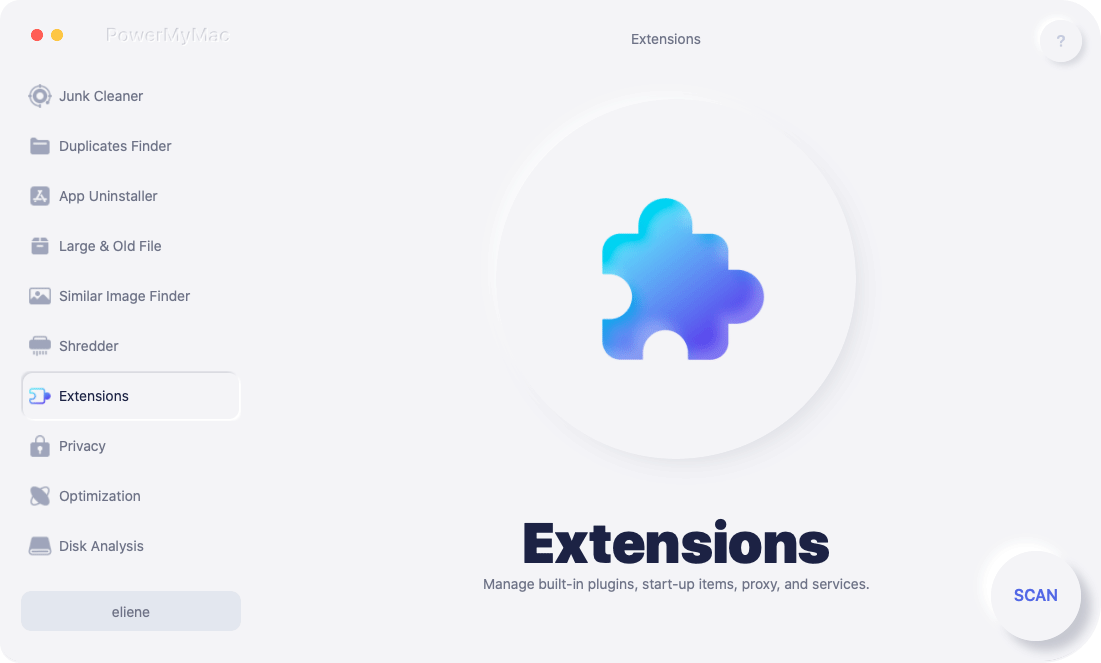
Launch PowerMyMac. Find and click on Extensions module on the left side of the screen.
Step 2. Scan Extension
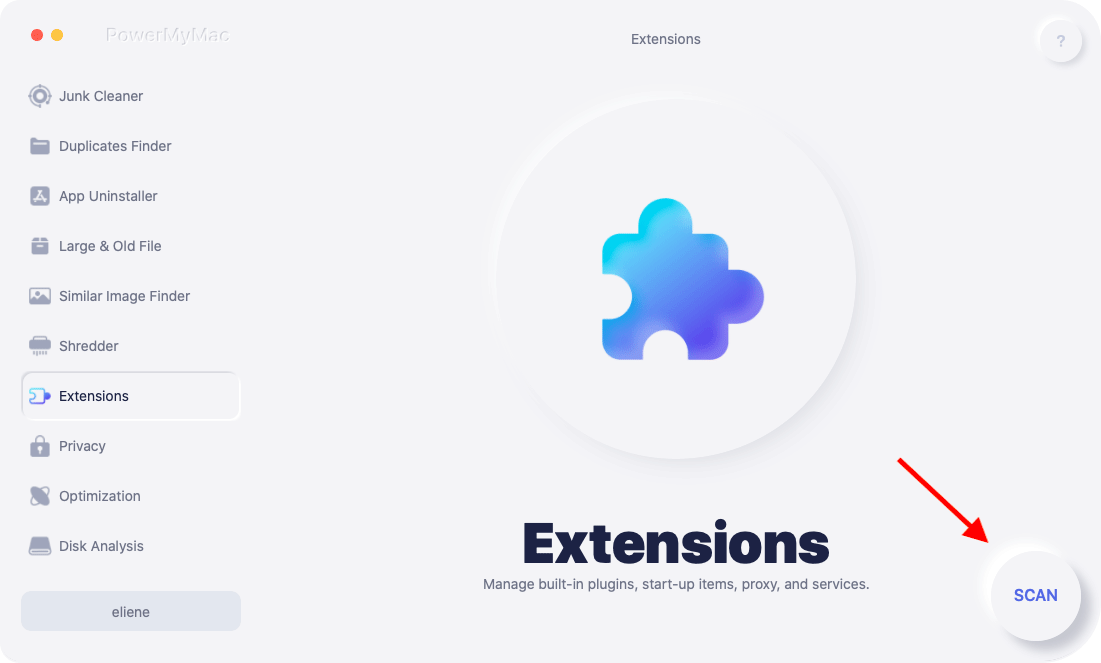
Klicka på 'SCAN’ button to start scanning all the extensions. Preview all the extensions after scanning.
Step 3. Enable or Disable Extension
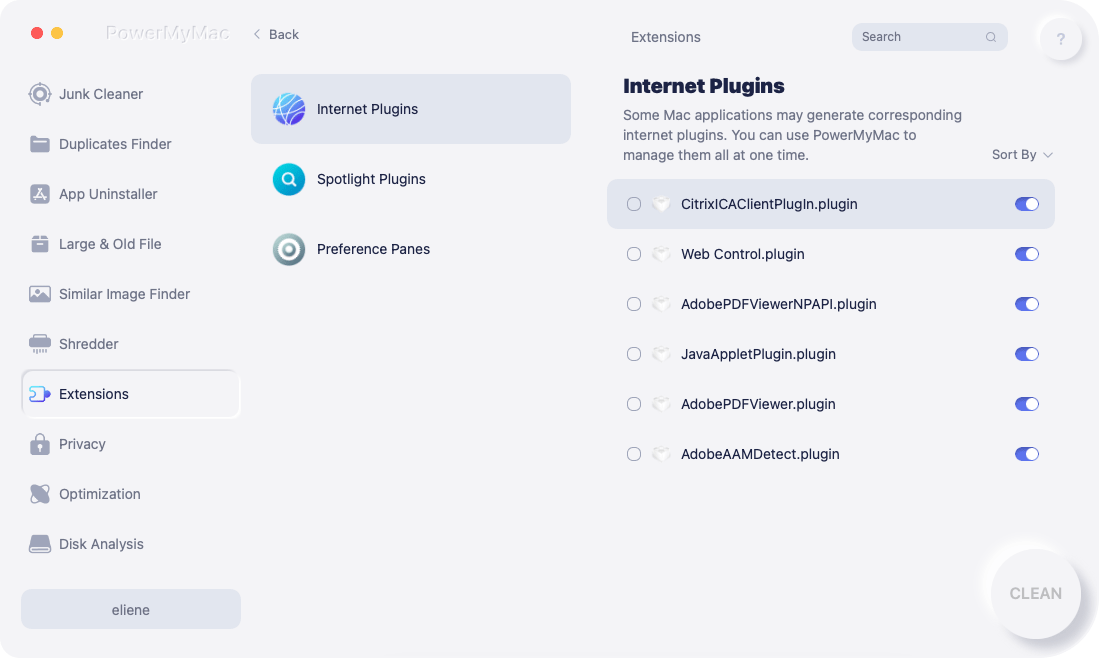
The extensions will be listed onscreen wherein it prompts you to turn on or off at any time and altogether in one place. Easily enable or disable Mac extensions you wish to use.
PowerMyMac can also clean system log files and speed up Mac performance. It can also diagnose system status and scan it for other possible issues.
Del 5. Hur man uppdaterar tillägg
Just like the Safari browser itself, extensions need to be updated from time to time because developers also release new bug fixes and versions.
The Safari browser automatically updates extensions that were installed from ‘Safari Extensions Gallery’on those Mac running with Safari 9 in OS X Yosemite or the most recent.
Du kan också manuellt uppdatera tilläggen som laddas ner från utvecklaren eller de tillägg som installerats under en tidigare Safari-version.
- On the Mac, choose Preferences from the Safari menu
- Find and click on Extensions
- Click Updates from the lower-left portion of the screen.
Obs: Uppdateringar visas bara när det finns tillgängliga, annars ser du dem inte när som helst.
- Click the Update button. Click on each extension with available updates that you wish to install.
Del 6. Sammanfattning
We have just learned all the necessary things we need to know about extensions as well as on how to enable or disable Mac extensions från artikeln ovan.
We have two options to do so: Manually or by using PowerMyMac. You have the choices on how you wish to enable or disable it at any given time.
Det spelar ingen roll om du behöver tillägg på din webbläsare eller inte, du har åtminstone förstått hur du använder den i framtiden. Dela den med vänner också!



